Important: In order to add a Lease Payment Option, you will need to setup your leasing provider in QuoteWerks in the Leasing tab. If you are using GreatAmerica and have a Real-time module, you will setup the Real-time Leasing Integration in the Real-time setup window. |
The Lease Payment Options provides users with an easy way to calculate different leasing options and present them to the customer on the quote such as 12 months, 24 months, 12 months with $1 buyout, etc. All leasing companies are supported, they simply need to be added to QuoteWerks. See the Leasing tab in the Options menu for information on setting up a default leasing company.
Purchase Amount
The Purchase Amount displays the document total. This includes all line items on the document, tax, and shipping costs.
Monthly Recurring Amount
The Monthly Recurring Amount displays the total monthly payments of any items on the Document Items tab that are setup as monthly recurring. Any items that are recurring weekly, quarterly, or annually will not be included in this amount.
1.To add a lease payment option to your quote, click on the [Add Lease Payment Options] button. You will need to have already created the quote with a currency value in order to add a leasing payment option as you cannot calculate a lease payment on $0.
2.Select your leasing provider from the drop-down list.
3.Select your rate card for that specified provider from the drop-down menu.
4.Choose whether or not to include the sales tax in the lease.
5.Choose whether to include the monthly recurring in the lease payment
Important: With this option selected, any monthly recurring items on the Document Items tab will be bundled into the monthly lease total providing the client with a single monthly payment that includes all monthly recurring items from the document. |
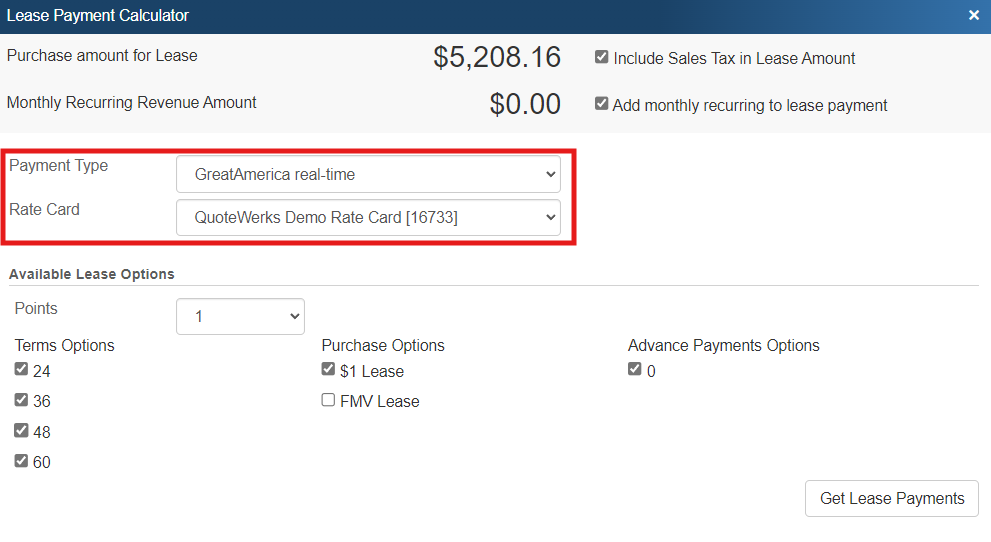
6.Next, select your lease options. Select points (additional points to add), term options (length of lease), purchase options (at least one of these purchase options is REQUIRED to calculate the lease payment), and the advanced payment options.
7.After you have made your selections, click on the [Get Lease Payments] button and your payment options will appear with check boxes next to them.
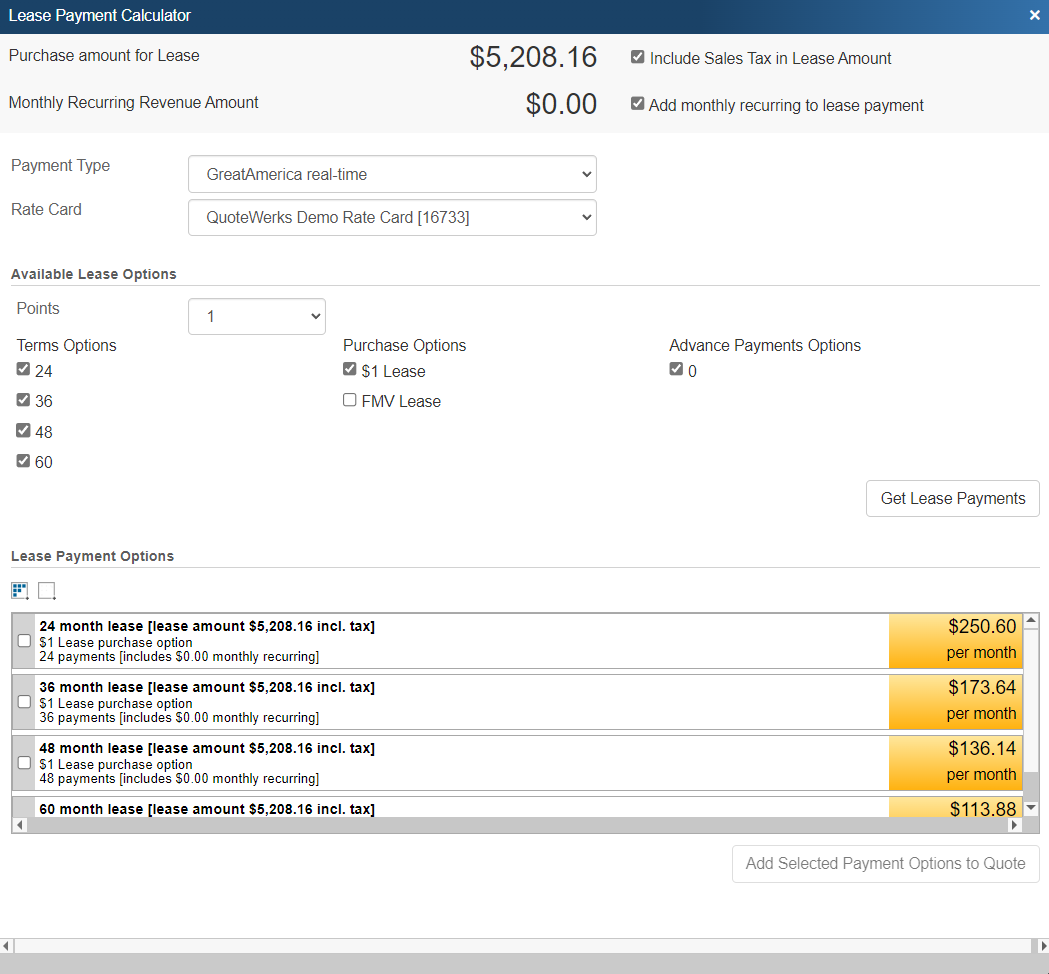
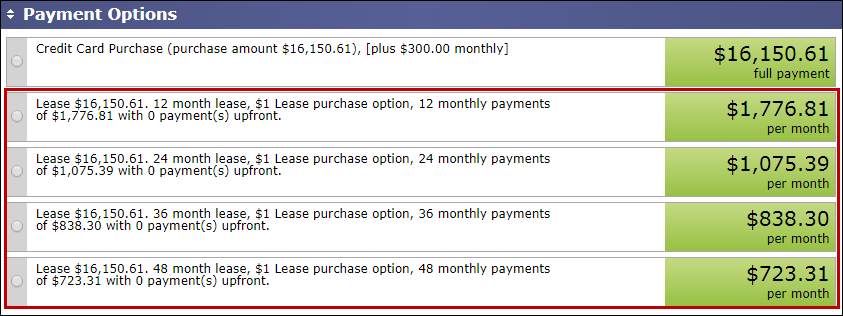
8.Select your payment option(s) and click [Add Selected Payment Options to Quote] to add the selected payment option(s) to your open QuoteWerks document. Your leasing options will now be available on the Payment Options window and you can select a default one by double-clicking on the payment option.
Important: In order for your lease payment option to be displayed on the quote, ensure you have selected a QuoteWerks layout designed for the leasing calculations or you have customized your layout to include these types of payments by adding the &PaymentOptions or &PaymentOptions_IndicateSelected macro to the layout. |
|
Refresh Lease Payment Options
Any time the rate cards are updated in QuoteWerks, you can click on the [Refresh Lease Options] button to refresh your available options with the updated pricing on that quote. This will also work if you are using the Real-time integration with GreatAmerica.
Change Lease Payment Options
To change the lease payment options on your quote, click on [Change Lease Payment Options]. This option will allow you to adjust the leasing payment options that will be displayed for your customer.
Payment Options for QuoteValet
When a quote with lease payment options, credit card, and/or other payment options are listed in the Payment Options on the Sale Info tab, the customer will be able to select their payment option on QuoteValet.