In order to further illustrate the use of the report filter features, the following is a step-by-step list of instructions on how to create a report filter. In this example, we will create a filter that will provide a list of all TD Synnex products ordered in 2025.
From the Filter tab of the Report Properties window we will begin creating the report by creating the filter expression. To begin building your filter expression, select the [Field] button.
From the Add Filter Item window, you will set the parameters for this filter item:
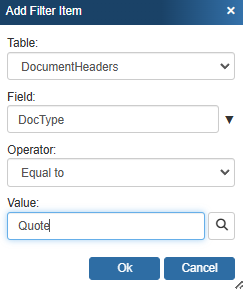
First, select the table of the field that you would like to filter. Your choices from the drop down box are DocumentHeaders and Document Items.
The DocumentHeaders table includes fields that store information such as whether the document is a quote, invoice, order, the date of sale, the sales rep, etc. Anything specific to the document, but none of the line item information.
TheDocumentItems table includes fields that store information about all the items in the all the documents. This includes information such as product description, unit price, manufacturer, vendor, part numbers etc. Anything specific to the line items on the documents, but not the document.
Since we want to find all the TD Synnex. products ordered in 2025, let’s start with the “TD Synnex” criteria.
Information about line items is stored in the DocumentItems table. Since we want to filter for line items in orders that have a manufacturer of “TD Synnex”, we will select the DocumentItems table.
Next, we will select the Manufacturer field from the Field drop-down.
Then we will set the operator. The operator allows us to specify the relation between the field and the value that we are looking for. We want to find all line items whose Manufacturer value equals “TD Synnex”, so we will select the select the Equal To operator from the drop down list.
Next, we want to enter the value that we are searching for. The Manufacturer value in the manufacturer field that we are looking for is TD Synnex. So, type TD Synnex. in the Value field.
Click on OK. The first parameter will now be listed on the filter tab under field names:
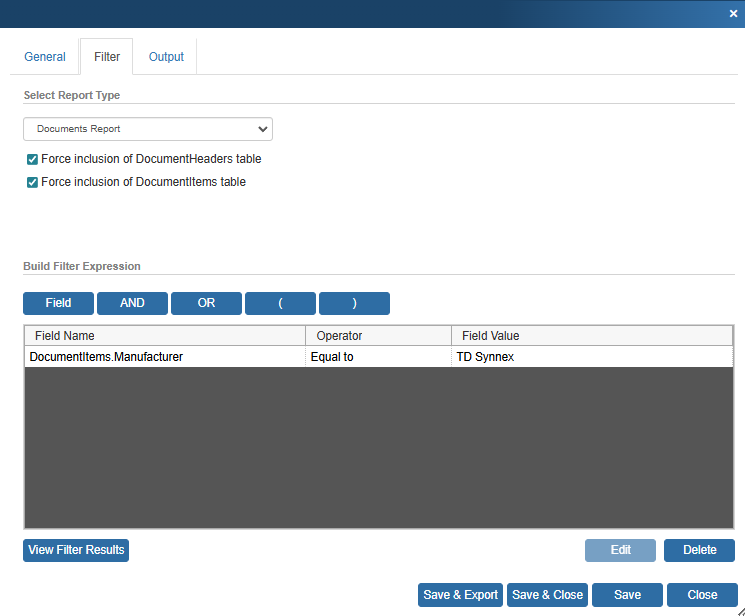
Here is a summary of this filter item. In our example, we are running a filter to see what TD Synnex products have been ordered in 2025. Products sold, including TD Synnex products, are stored in the DocumentItems table. We only want to find the records in the DocumentItems table that have TD Synnex listed as the manufacturer. Therefore the logic for the filter is “Search the DOCUMENTITEMS (table) where the MANUFACTURER (field) is EQUAL TO (operator) TD Synnex (value).
Between each filter parameter, there must be a logic phrase that identifies how we want to group these filter parameters together. In our example, we want to find records that have a manufacturer of TD Synnex AND that were part of an order AND that were sold in 2025. So, for the filter items that will be in our filter expression, we will use the AND keyword to connect them together.
Click on the [AND] button for the connecting operator of AND.
Next click on the Add Filter Item button. Now we want to create the filter item that filters only orders.
Information about documents that is not line item based is stored in the DocumentHeaders table. Since we want to filter for documents that are orders instead of quotes or invoices, we will select the DocumentHeaders table:
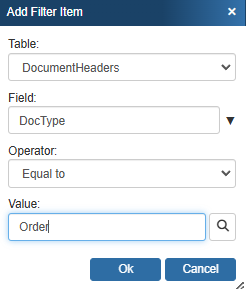
Next, we will select the DocType field from the Field drop-down. The DocType field is where the document type is stored. This field will have a value of QUOTE, ORDER, or INVOICE. Note that for the DocType field, it is important that you use all capital letters for the value.
We will then set the operator. The operator allows us to specify the relation between the field and the value that we are looking for. We want to find all the documents where the DocType value equals “ORDER”, so we will select the Equal To operator from the drop down list.
Next we want to select the Value. The DocType that we are searching for is ORDER. Type ORDER in the Value box.
Click on OK. The DocType parameter will now be listed on the filter tab under field names:
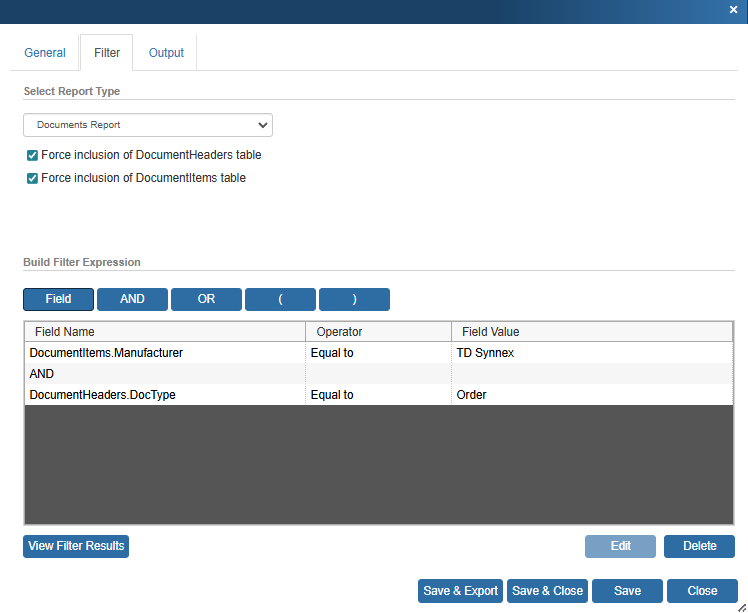
Here is a summary of this filter item. The document type field is in the DocumentHeaders table. Therefore the logic is “Search the DOCUMENTHEADERS (table); where the DOCTYPE(document type) (field); is EQUAL TO (operator); ORDER(value).
The filter expression for the report that you have customized so far is shown in the screenshot above.
To filter by a date range such as a particular year, we need to create a filter item for both the beginning of the year and the end of the year.
Click on the [AND] button to add the connecting operator, as explained in an earlier step.
Next click on the Field button. We want to create the filter item that filters for the beginning of 2025.
Information about documents that is not line item based is stored in the DocumentHeaders table. Since we want to filter for documents that were created in 2025, we will select the DocumentHeaders table:
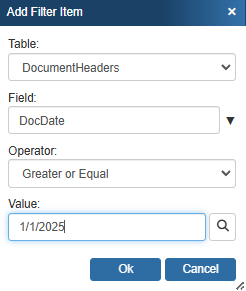
Next, we will select the DocDate field from the Field drop-down. The DocDate field is where the document date is stored.
Then we will set the operator. The operator allows us to specify the relation between the field and the value that we are looking for. We want to find all the documents where the DocDate value is greater than or equal to 1/1/2025, so we will select the Greater or Equal operator from the drop down list.
Next we want to select the Value. The DocDate value we are searching for is 1/1/2025, so type 1/1/2025 in the Value box.
|
Click on [OK}. This third parameter will now be listed on the filter tab under field names:
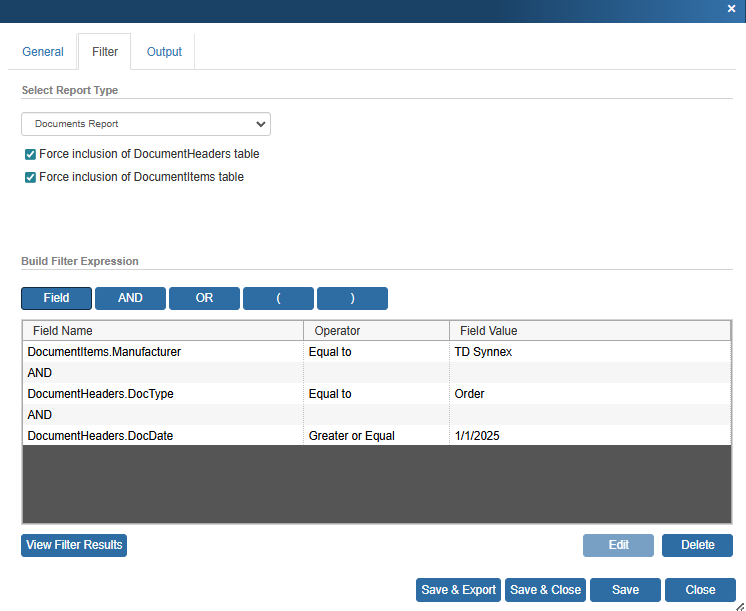
Here is a summary of this filter item. The logic is “Search the DOCUMENTHEADERS (table); where the DOCDATE(document date) (field); is GREATER OR EQUAL (operator); 01/01/2025(value).
We now need to add a filter item for the end date. Without specify this, the filter will return all orders from 2025 or later.
Click on the AND button to add the connecting operator, as explained in an earlier step.
Next click on the Field button. We want to create a filter item that filters for the end of 2025, so that the report will pull all the orders for 2025 and only 2025.
Information about documents that is not line item based is stored in the DocumentHeaders table, so we will again select the DocumentHeaders table:
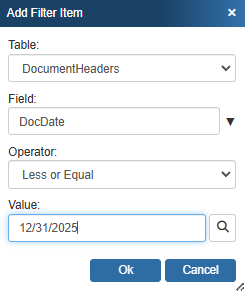
Next, we will again select the DocDate field from the Field drop-down.
Then we will set the operator. The operator allows us to specify the relation between the field and the value that we are looking for. We want to find all the documents where the DocDate value is less than or equal to 12/31/2025, so we will select the Less or Equal operator from the drop down list.
Next we want to select the Value. The DocDate value we are searching for is 12/31/2025, so type 12/31/2025 in the Value box.
|
Click on [OK]. This fourth and final parameter will now be listed on the filter tab under field names:
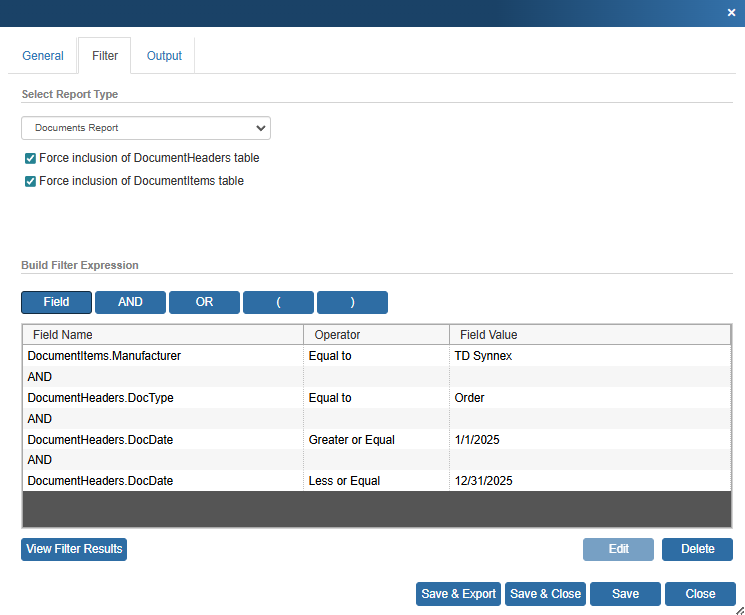
The completed filter is now displayed in the screenshot above. For our example, we are running a filter to see what TD Synnex products have been ordered in 2025.
Therefore, the complete logic is “Search the DOCUMENTITEMS (table) where the MANUFACTURER (field) is EQUAL TO (operator) TD Synnex (value); AND (relation); Search the DOCUMENTHEADERS (table); where the DOCTYPE (field); is EQUAL TO (operator); ORDER (value); AND (relation); Search the DOCUMENTHEADERS (table); where the DOCDATE (field); is GREATER OR EQUAL (operator); 01/01/2025 (value); AND (relation); Search the DOCUMENTITEMS (table); where the DOCDATE (field); is LESS OR EQUAL (operator); 12/31/2025 (value).”
Once the filter items have been added to the list, they can be edited or deleted by selecting the item and clicking on the appropriate button.
See next: