QuoteWerks Web now provides the option to toggle on a new user interface. This new interface is more modern and creates a more intuitive user experience. It no longer features large icons across the top of the window. Instead, many of these options are available from the Left Navigation Panel, the Drop Down Menus, or the Grid Toolbar.
To toggle between the Classic UI and the New UI click on the Try New UI button on the top right of the QuoteWerks Window:

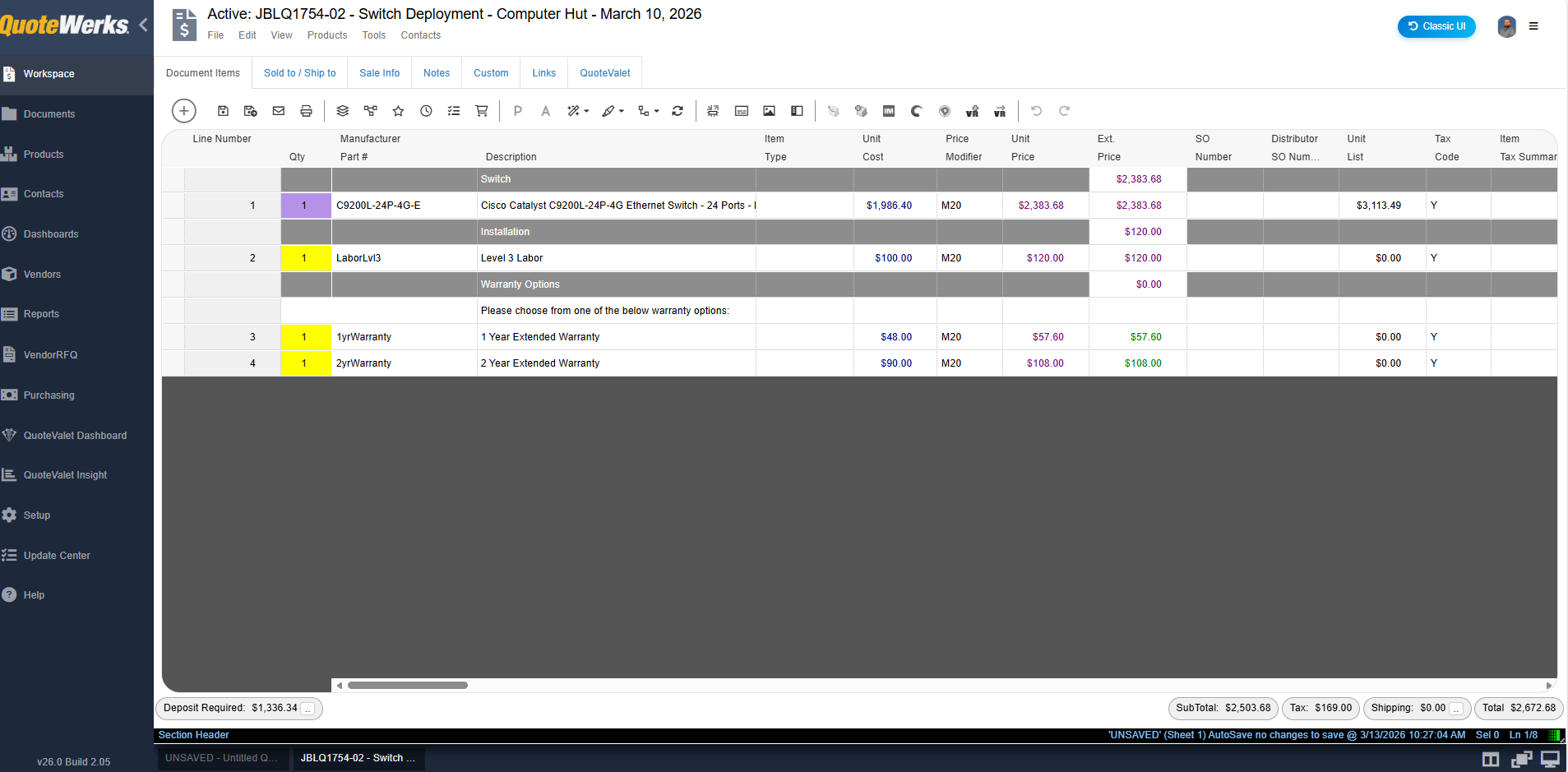
The user interface is comprised of the following areas:
The Left Navigation Panel allows you to access most features and setup options including a link to the Workspace, the ability to open documents, the Product Lookup Window, the Contact Lookup Window, and more.
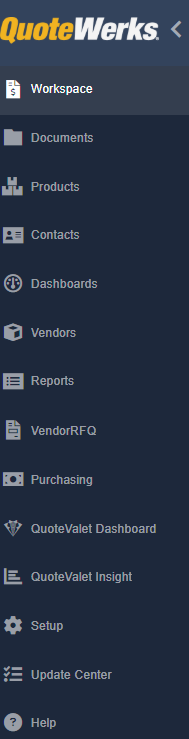
Below is a description of each of the options listed on the Left Navigation Panel:
•Workspace - this option returns you to the splash screen or to any quote you may have open.
•Documents - this option opens the Open Window where you can search for and open existing documents.
•Products - this option opens the Product Lookup Window where you can search for and select products and services to be added to a quote.
•Contacts - this option opens the Contact Lookup Window where you can search for and select contacts to be added to a quote.
•Dashboards - this option opens the QuoteWerks Dashboards which can be used to see information about documents and QuoteValet activity.
•Vendors - this option opens the Vendor Maintenance Window where you can create and manage vendor information.
•Reports - this option opens the Management Reports Window where you can run existing and create new management reports.
•VendorRFQ - this option opens the VendorRFQ window where you can submit pricing requests to your vendors
•Purchasing - this option open the Puchasing Module where you can create manual and electronic POs as well as track receiving and fulfillment information.
•QuoteValet Dashboard - this option opens the QuoteValet Dashboard where you can view and interact with documents that have been uploaded to QuoteValet.
•QuoteValet Insight - this option opens the QuoteValet Insight window where you can view document activity, dashboards, and review document approval requests.
•Setup - this option opens the Setup menu that contains different setup options you have when configuring QuoteWerks.
•Update Center - this option opens the Update Center where you can view and search different features and fixes that have been applied or are being actively worked on by the QuoteWerks development team.
•Help - this option opens the Help Toolbar where you can access different resources that can assist in working with or troubleshooting QuoteWerks.

The dropdown menus across the top of the Quote Workbook are similar to those that you would see in most windows applications. They include File, Edit, View, Products, Tools, and Contacts.
•File - The file menu contains different options that enable you to create new documents, open, close, and save existing documents, templates and revisions. This menu also gives you the ability to rename or delete the document, insert existing documents, or duplicate the document. It also has options to approve the quote if approval is required and convert the quote to an Order, Invoice or Lost Sale. There is also an option to open the Print/E-mail/Deliver document window as well as a menu to open recent documents you have interacted with.
•Edit - The edit menu contains basic and advanced cut, copy, paste, and select options that help when working with document items. Here you can also change line properties, types, and attributes, insert or add different types of lines into the document, delete or clear lines, apply changes to lines on the document, and convert items into groups.
•View - The view menu has options that allow you to customize columns in the Quote Workbook, customize what tabs are displayed there, and to view documents that are associated to the currently open document including revisions, duplicates, or ones with the same project number.
•Products - The products menu gives you the ability to open the Product Lookup Window, access the configurator and bundles, and setup your different product data sources.
•Tools - The tools menu provides options to refresh item pricing and details, show item options, show customer product price history, export items, access the purchasing module, as well as My Preferences, which are the user preferences for the logged in user.
•Contacts - The contacts menu gives you the ability to open the Lookup Contact window as well as setup your contact manager integration.

Below the drop down menus are different tabs used to navigate around the Quote Workbook. These tabs are directly related to the open quote and give you the ability to build your quotes.
The updated grid toolbar menu has new options that make navigating and working with the QuoteWork easier.

Some of the new icons and their functions are outlined below:
 Add New Line - clicking this button opens the add new line menu where you can add the following type of lines: product/service, blank line, comment, heading, formula, subtotal, running subtotal, summary line, % discount, or % charge.
 Save - clicking this button saves the currently open document.
 Save as Revision - clicking this button creates a new revision of the currently open document.
 Deliver - clicking this button opens the Print, Share, Publish, Deliver Document window.
 Print - clicking this button opens the Print, Share, Publish, Deliver Document window.
 Bundles - clicking this button opens the Bundles window.
 Configurator - clicking this button opens the Configurator window.
 Best - clicking this button retrieves the best pricing for the selected item from available vendors or product databases.
 Latest - clicking this button retrieves the latest pricing for the selected item from the vendor listed for that item.
 Compare - clicking this button allows you to compare pricing for the selected item from available vendors or product databases.
 Purchasing - clicking this button opens the Purchasing window.